

Diving into the power features of
tmux: scripting, custom keybindings, appearance tweaks. This is where tmux stops being “just a terminal tool” and starts becoming your terminal ecosystem.
🛠️ tmux Custom Key Bindings
The default tmux keybindings are okay — but if you’re using tmux daily, you should tune it to match your flow.
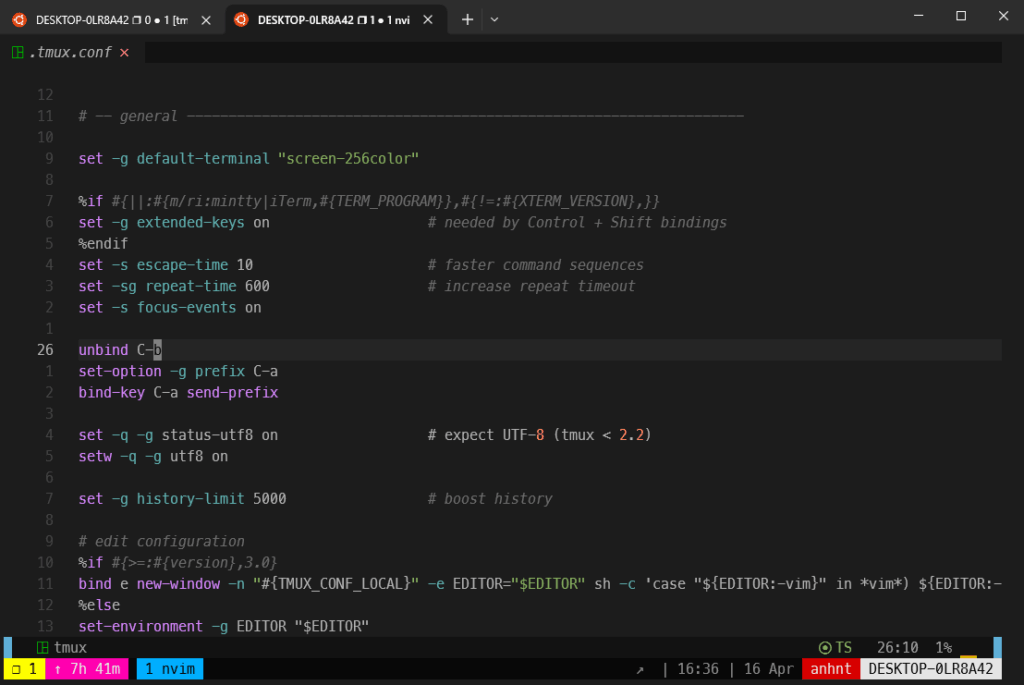
How to remap the prefix key (default is Ctrl + b) in tmux:
Add this to your ~/.tmux.conf:
# Set prefix to Ctrl-a
unbind C-b
set-option -g prefix C-a
bind-key C-a send-prefix
Now you use
Ctrl + aas your prefix. Easier for the left hand, especially if you’re an Emacs user.
Create shortcuts for frequent actions in tmux:
# Split panes
bind | split-window -h
bind - split-window -v

# Reload config
bind r source-file ~/.tmux.conf \; display "Config reloaded!"
📜 Scripting with tmux
tmux supports scripting out-of-the-box, meaning you can automate entire environments with one command.
🧪 Example: Script to auto-setup a dev session
#!/bin/bash

SESSION="dev"

tmux new-session -d -s $SESSION

tmux rename-window -t $SESSION:0 'Editor'
tmux send-keys -t $SESSION:0 'nvim .' C-m

tmux new-window -t $SESSION:1 -n 'Server'
tmux send-keys -t $SESSION:1 'npm run dev' C-m

tmux new-window -t $SESSION:2 -n 'Logs'
tmux send-keys -t $SESSION:2 'tail -f logs/output.log' C-m

tmux attach-session -t $SESSION
Save this as dev-start.sh, make it executable, and run it whenever you want to jump into your dev environment:
chmod +x dev-start.sh
./dev-start.sh
Boom. Everything ready to go in under 1 second.
✨ Customize Your tmux Appearance
A slick terminal isn’t just aesthetic — it’s functional. Color cues and status bars can keep you focused and informed.
🎨 Set up a custom status bar
set -g status on
set -g status-bg black
set -g status-fg green
set -g status-left "#[fg=cyan]#S #[fg=green]|"
set -g status-right "#[fg=yellow]%Y-%m-%d #[fg=green]%H:%M"
You’ll see your session name on the left and the time/date on the right.
Here is my custom status bar

🔌 tmux Plugin Manager (TPM)
TPM makes it dead simple to install, manage, and update plugins.
Install TPM
git clone https://github.com/tmux-plugins/tpm ~/.tmux/plugins/tpmThen add this to your ~/.tmux.conf:
# TPM plugin manager
set -g @plugin 'tmux-plugins/tpm'

# Example plugins
set -g @plugin 'tmux-plugins/tmux-sensible'
set -g @plugin 'tmux-plugins/tmux-resurrect'
set -g @plugin 'tmux-plugins/tmux-continuum'

run '~/.tmux/plugins/tpm/tpm'
Reload tmux and install plugins:
# Hit prefix + I (capital i)🔄 Useful Plugins
- tmux-resurrect – Restore tmux sessions after reboot
- tmux-continuum – Auto-save sessions every 15 minutes
- tmux-yank – Copy to system clipboard
- tmux-battery – Show battery status in the status bar
Best Practices
- Keep your
.tmux.confin version control (dotfiles repo) - Use scripts for repetitive setups (especially per project)
- Install plugins you actually use — too many will slow down tmux
- Reload config without restarting tmux:
Ctrl + b, thenr(if bound)
Looking for a powerful, customizable tmux setup out of the box? Check out the open-source repository oh-my-tmux — a popular tmux configuration framework trusted by developers worldwide. It offers a fully-featured, community-standard configuration that you can easily tailor to fit your workflow and preferences.
Conclusion
You’re no longer just using tmux — you’re commanding it.
This post covered:
- Remapping keys for faster workflows
- Automating sessions with scripts
- Customizing the look and feel
- Installing plugins to expand functionality